Formulas Part 1: And it works
Many users of RagTime are afraid of formulas or only use the simplest ones. In this chapter, we want to try to take away your fear of using formulas. But even if you already use formulas frequently, you should not simply skip the formula chapters because they lead from a gentle introduction, or repetition, to the “advanced level”.
Often you insert formulas into your RagTime document without noticing it. For example, if you insert any of the special texts available in this menu item into a text using «Edit ➝ Insert Special Text», it has already happened. Check it: Select the inserted text and click on the abacus  in the toolbar. In the now opened formula palette, you see the corresponding formula.
If the formula palette is empty, then you have selected too little or too much text. Try it again. But first activate «Windows ➝ Show ➝ Formula Borders in Text». Then all text passages that are related to a formula are framed with a thin line. This makes selecting significantly easier! Leave the formula palette open if you want to follow the further explanations, so that you can always see immediately what happens.
You can insert formulas into spreadsheet cells, or into texts, in text components as well as in graphic text. In these cases, the result is immediately visible. But you also need formulas for graphs and buttons. In many settings (and this for all component types), formulas enormously expand the possibilities.
Unsurprisingly, the most common applications of formulas are, of course, in spreadsheets. And because the most common calculation operation is the summation of numbers standing one below the other, in RagTime you can directly call the sum function with a click on the corresponding symbol ∑ in the toolbar.
There are two ways to apply this: In a table column, several numbers stand one below the other. Select a cell further down in the same column and click on the sum symbol. RagTime then inserts the sum formula for the numbers in the selected cell, as far as they stand as a closed range (without blank lines) in the table. If several columns next to each other contain numbers, you can also generate all sum formulas at once in an analogous way.
Provided that the last cell bottom right in the range to be summed contains a value, you can select this range – which may also contain blank lines – instead of the “target cells” and then click on ∑. This forms the sum in the cells directly below or to the right, depending on the selected range. Of course, the corresponding formulas are also inserted into these cells.
- Tip:
-
Experienced RagTime users will get the impression when first skimming this chapter that everything is very familiar. But there are certainly also a few explanations hidden here that are new or have been forgotten. Even for experienced users, it is worth reading “Formulas Part 2: Variety of buttons” and “Formulas Part 3: In full swing” more closely.
Certainly, calculating does not stop with summing. Nevertheless, let's stay with this function for a moment. If you want to sum numbers in several unrelated ranges, you can specify these ranges, each separated by a semicolon, in the sum formula. How do you proceed to create such a formula?
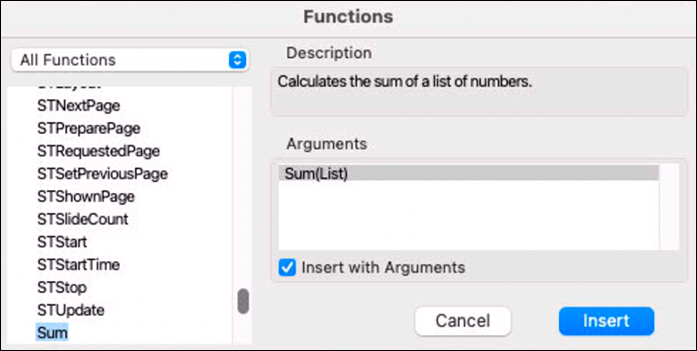
Select the text passage or spreadsheet cell where the result of the formula should appear and click on the function symbol ƒ in the header bar of the opened formula palette. Or command «Extras ➝ Calculation ➝ Functions» (also with keyboard shortcut AL/6L). Select the display type «All Functions» and type the beginning of the desired function, for this example thus «Sum» (under Windows, first click into the window with the functions!). The table is shifted upwards so that the desired function is selected and visible as the bottom line in the list (see Fig. F-1.1).
If you have only entered «Su», then the function «Sum» is selected (however, with the extension «MetaFormula» activated the selection hits «SubTotal», and you must press the down arrow key once to get to the function «Sum»). Top right, you see the explanation of the function and bottom right, in the window «Arguments», its syntactically correct representation. In the case of the function «Sum», there is only one representation or argument form.
Activate the option «Insert with Arguments»! Especially with more complicated functions, this is very helpful to avoid syntax errors when typing directly into the formula palette. With «Insert», the selected function is transferred to the formula palette.
In our example, «Sum(List)» was placed into the formula window in this way. The argument «List» is selected. Note that here it says not «Range», but precisely «List». You can now drag over the ranges whose numbers are to be summed with the pointer and pressed mouse button. Such ranges can be in different spreadsheets of the document or even in other documents. Between the ranges, you must enter a semicolon each (see Fig. F-1.2). Of course, you can also type in a reference known to you, just as you could type all formulas and functions directly into the formula palette.
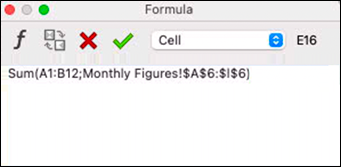
Do not forget to complete the formula entry with a click on the green checkmark  . If the formula is syntactically correct, it is inserted into your document. If RagTime detects an error, it is often too many or too few parentheses. In complex formulas, it is particularly important to check the spelling of the individual functions and the referenced ranges again. It is easy to mark one cell too many or too few with the pointer. If the formula palette blocks your view, you can move it, on the Mac also “park” it in the palettes dock (green button) – or you close it completely.
If you want to edit a formula, you must select the result and open the formula palette again. For spreadsheet cells, you can simply click on the cell; in text, you must select exactly the result, no character more or less. «Windows ➝ Show ➝ Formula Borders in Text» can help you with this. If you want to undo a change before you have completed the formula entry, click on the symbol  . This restores the last correct state of the formula. If RagTime detects a syntactic error after confirmation of the formula entry with , an error diagnosis is displayed and in the formula palette, the pointer is at the place where the error was detected.
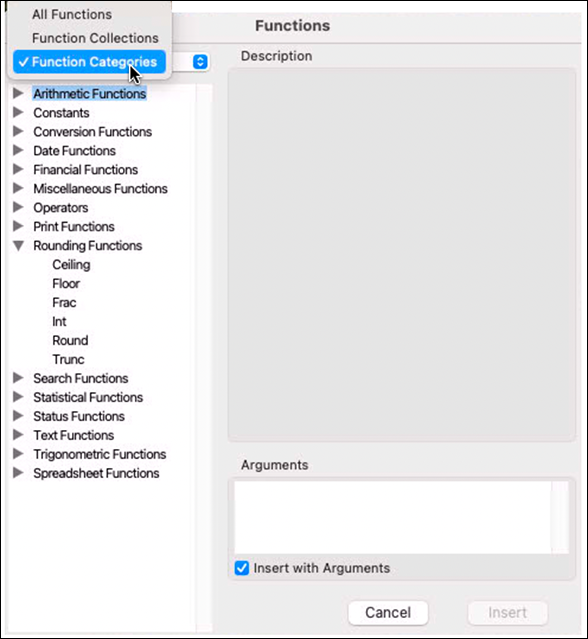
Not every problem solution has a function name that is as easy to find as «Sum». Select in the functions list the display mode «Function Categories» (see Fig. F-1.3) or «Function Collections» and expand the relevant entry: the list of displayed functions is thus considerably shorter and limited to the interesting ones. If this is not enough to find the desired function, look in the reference for formulas and functions, or search for an example with a similar task under «Help/Info ➝ Sample Files» or on the Internet.
In «Function Collections», groups of functions are summarized that were installed as separate program modules, in most cases unnoticed during the basic installation of the program. But if you have acquired extensions like «Power Functions» or «MetaFormula», then the functions installed with them are also listed as separate collections.
You often face the problem of applying a formula multiple times in a table, e.g., in several consecutive rows, multiplying the value in column A with the value in column B. In row 1, you have entered a simple formula (without using a function) in column C: A1*B1. In column D, the contents of the same cells were divided: A1/B1. Select the range C1:D1 and go with the pointer to the handle at the bottom in the middle of the selected range. The pointer symbol now changes to  . Grab the handle and drag with pressed (left) mouse button down as far as the formulas (including cell formatting) should be copied. The formulas are automatically adjusted so that the cells in the two first columns of the respective row are referenced. If a row or column is inserted into the table, RagTime also automatically adjusts the formulas. The copying of formulas by dragging works not only downwards, but in all four directions, whereby of course the corresponding handle must be pulled.
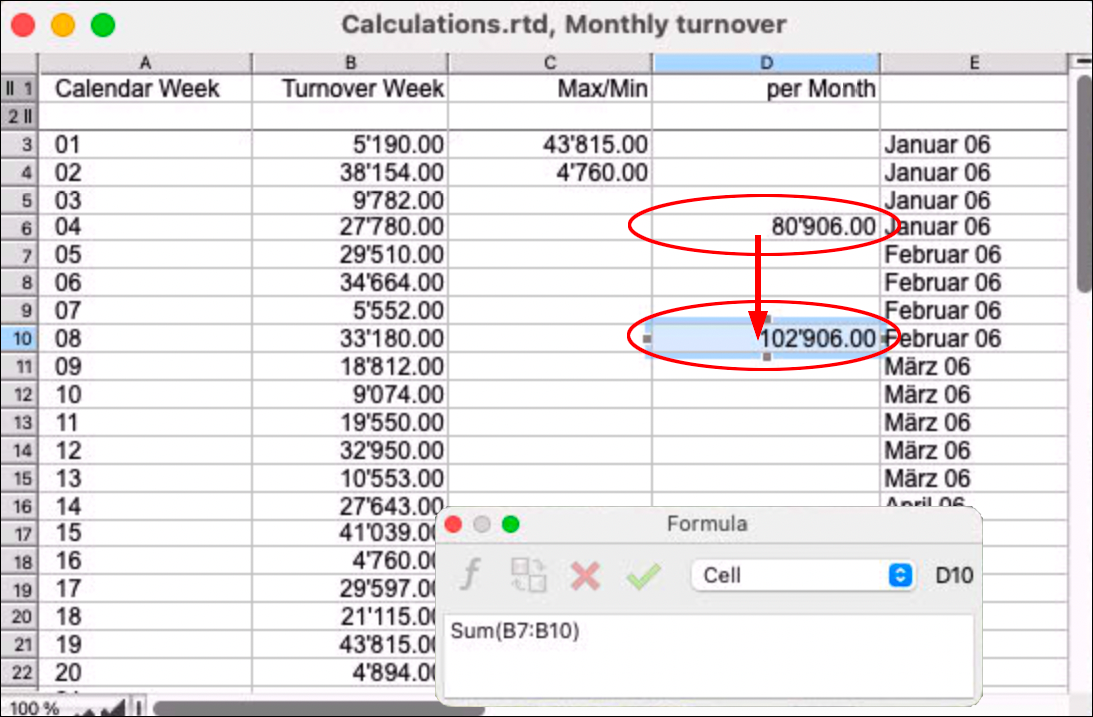
When formulas are transferred with «Copy/Paste», RagTime adjusts the inserted formulas so that the referenced cells are in the same geometric (relative) relationship to the results as in the copied formulas. In Fig. F-1.4, the distance from the upper summation in cell D6 to cell D10 is four cells. If the same formula were copied to D15 (i.e., to the last week of March), this would result in a wrong result. RagTime logically inserts the formula «Sum(B12:B15)» – thus also four cells lower.
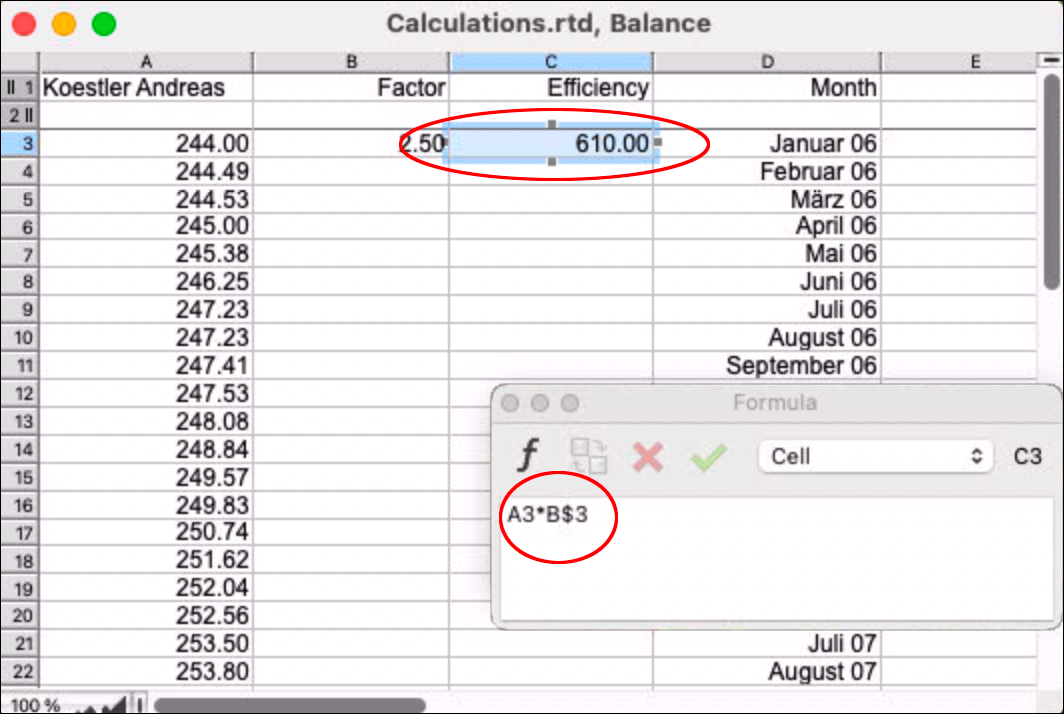
The type of formula adjustment just described assumes «relative addressing». If we look at Fig. F-1.5, here all values in column A should be multiplied with the value in cell B3. Then this must be specified in such a way that fixed (absolute) addressing is used. In cell C3, you form the formula as follows: Click on cell A3, enter the operator «*» , click on cell B3. If you copied this formula downwards in the described way, the formula «A4*B4» would appear in cell C4. To ensure that the second argument of the formula is not adjusted when copying, the absolute addressing must be used. It is defined by a preceding dollar sign «$».
Select the part «B3» of the formula and click on the symbol  . This places a «$» sign before each part of this argument (column and row). Click further on this symbol to limit the absolute addressing to the column or the row (this last variant would also suffice in our example). And then it starts again from the beginning.
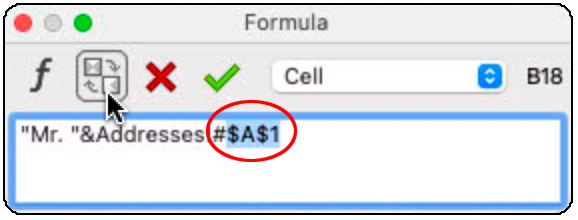
Another modification character in formulas is the commercial number sign «#» common in the USA. If this character is before an address reference, not only the value is taken over, but the content including format (character and paragraph formatting and/or value format). Of course, this only makes sense if the referenced cell content is not only used as an argument of a mathematical calculation, but should come into effect in the representation of the result; thus with exact font, font size, and font color (see Fig. F-1.6).
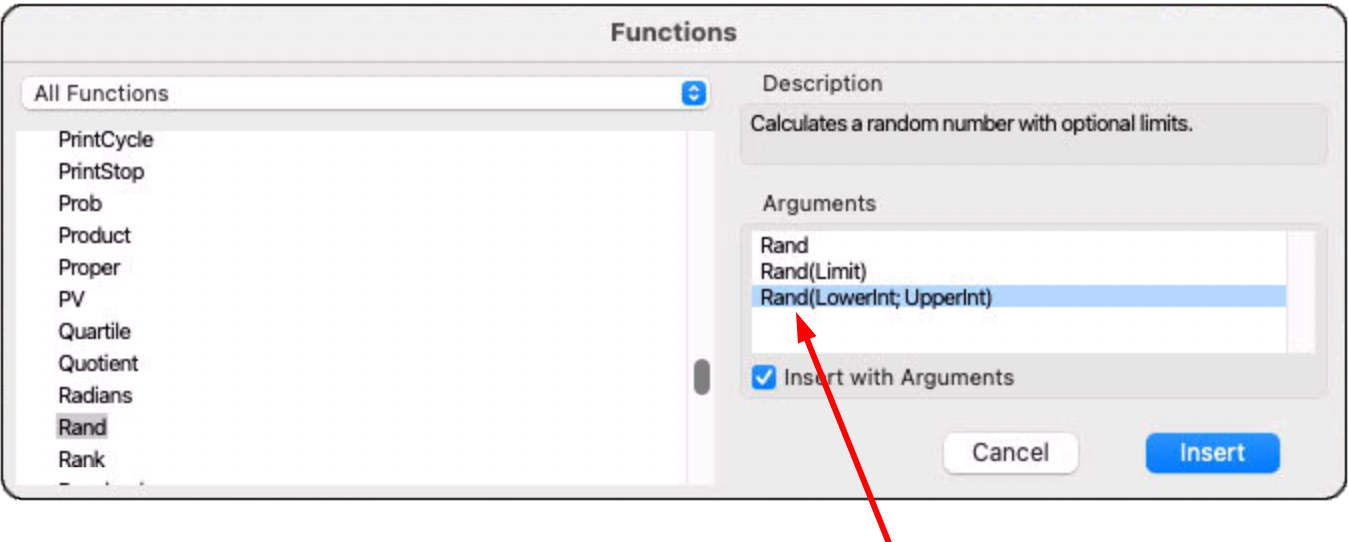
There are several variants of many functions, which differ by the type and number of arguments. As a simple example, we choose here the function «Rand». If you call the function in the functions list, three variants are displayed in the window «Arguments» (see Fig. F-1.7): without argument, the function delivers a random number between 0 and 1.
With the argument «Limit», RagTime delivers a random number between 0 and the specified upper limit value. With two arguments («LowerInt», «UpperInt»), an integer between the two limit values is generated. Select the appropriate variant of this function, and insert it into the formula palette. If you have selected the third variant, the first of the two arguments is marked in the formula, so that you can directly start entering the value, either a number, or again a formula or reference that leads to the result (see Fig. F-1.8).

This demonstrates the advantage of always working with the option «Insert with Arguments»: You never forget or confuse an argument and do not violate any syntax rule. Especially when you use functions with several arguments in nested formulas, such a stepwise and “guided” procedure is extremely helpful. If you have laboriously searched a few times in a complicated formula for the place where you forgot, for example, a parenthesis or a semicolon separator, you know why.
After this introduction to the topic «Formulas», we make a big jump. As is well known, only on the Mac platform is there the possibility to supplement RagTime with your own functions – written as AppleScript. As consolation for all those who work with Windows: only isolated Mac users know more than the name of AppleScript and can handle it.
But on both platforms, the search functions, mostly «VSearch», combined with the function «SetCell», offer the possibility to write formulas that are processed in a script-like manner. We will use this possibility intensively in the example chapters. The basics for this are found in Chapter 3 “Ready for print by notes”.
An extremely useful aid in RagTime are buttons. With them, calculation commands can be triggered that enormously facilitate your work with RagTime documents. Especially in forms, buttons can provide valuable services. So if you want to continue with formula exercises right away: see “Formulas Part 2: Variety of buttons”.