A Palettes
Many tasks involve repeatedly using commands from a specific group. To save you having to search for them in a menu or drop-down menu, you can arrange these commands in a palette in the window where you are currently working on the document. This means that these commands are always quickly accessible. Here we provide an overview of the available palettes, explain how to create them, and describe their particular uses.
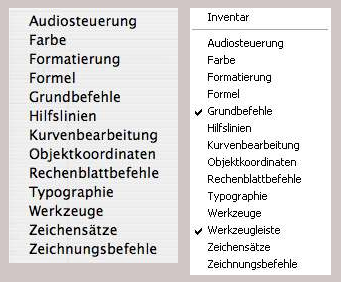
You will find a whole range of palettes under «Windows ➝ Palettes» (see Fig. A.1). A comparison between the two platforms reveals some differences: in Windows (on the right in Fig. A.1), the Inventory and toolbar are also listed in this drop-down menu. Another, much more important difference is not apparent: on the Mac, there is a palette dock – a kind of “super palette” that can be placed anywhere in the window – where palettes that are not currently in use can be parked and easily retrieved from there, much more easily than with the standard procedure.
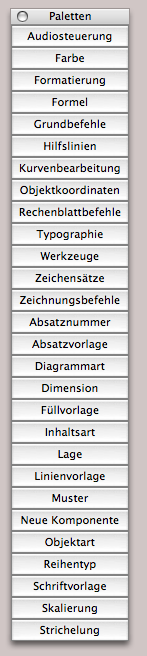
This is very practical, as it allows you to always have the maximum window space available for the document while still being able to quickly access the palettes. Typically, about half a dozen palettes will be docked there. Fig. A.2 therefore shows an unrealistic situation: all possible palettes are parked in the dock.
Under Windows, the palettes are either floating or docked at full size at the edge of the window, which can drastically reduce the window space available for the document. Double-clicking on the blue header bar or dragging to a window edge docks the palette to the window edge – double-clicking on the same edge where it was last docked. It can also be detached from there by dragging the header bar or double-clicking, and then it “floats” in the window again.
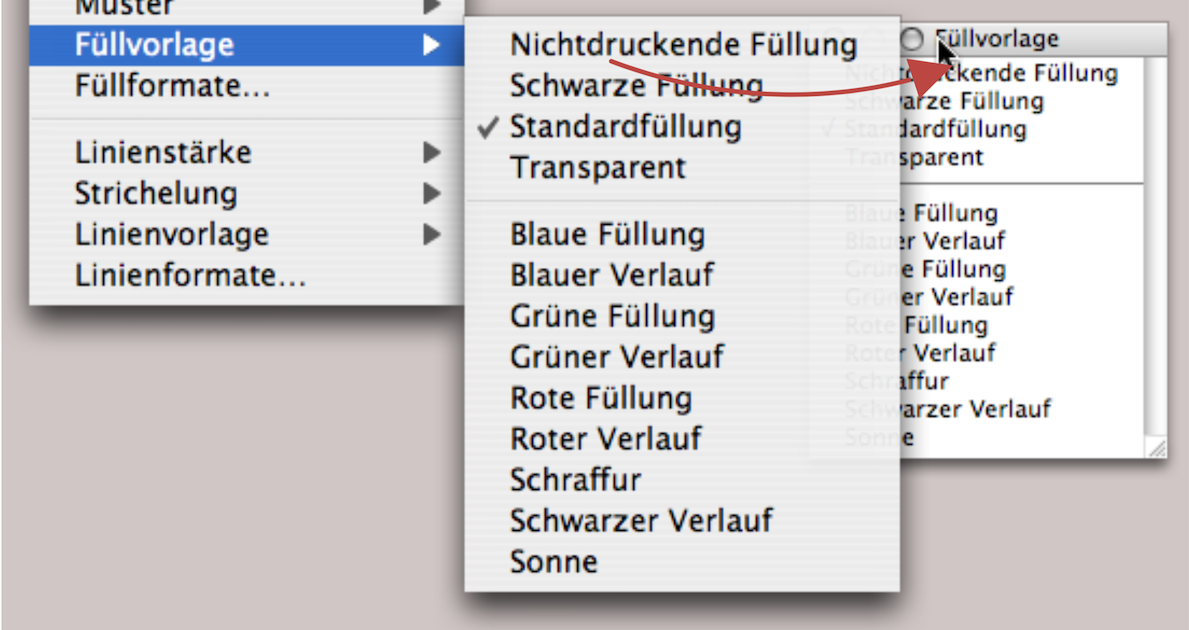
In addition to these “standard palettes”, there are a number of other palettes that correspond to a drop-down menu that can be torn off. Once you have opened the menu, simply drag it to the right with the (left) mouse button pressed until the palette behind it appears (see Fig. A.3). The palettes “float”, meaning they can be dragged to any location on the screen, or under Windows, in the program window.
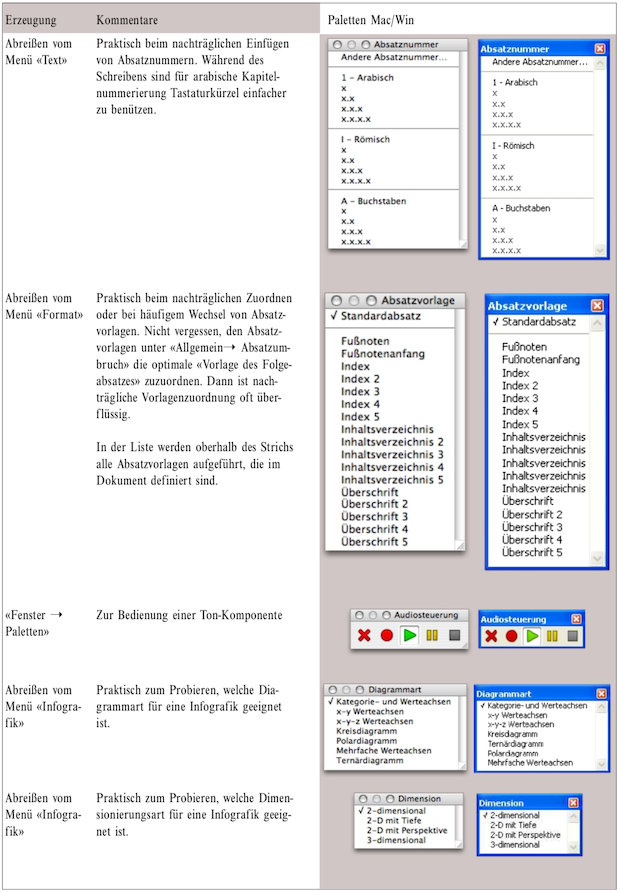
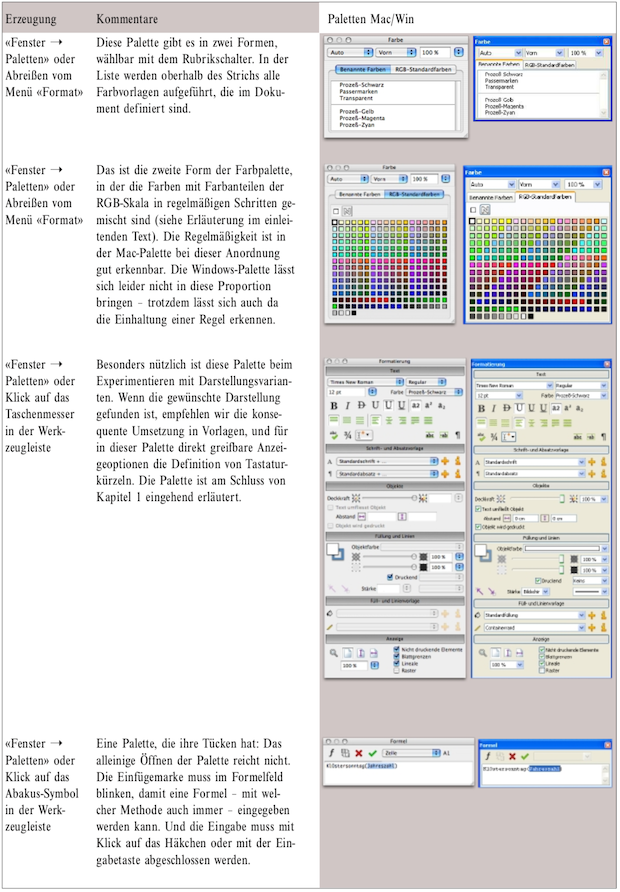
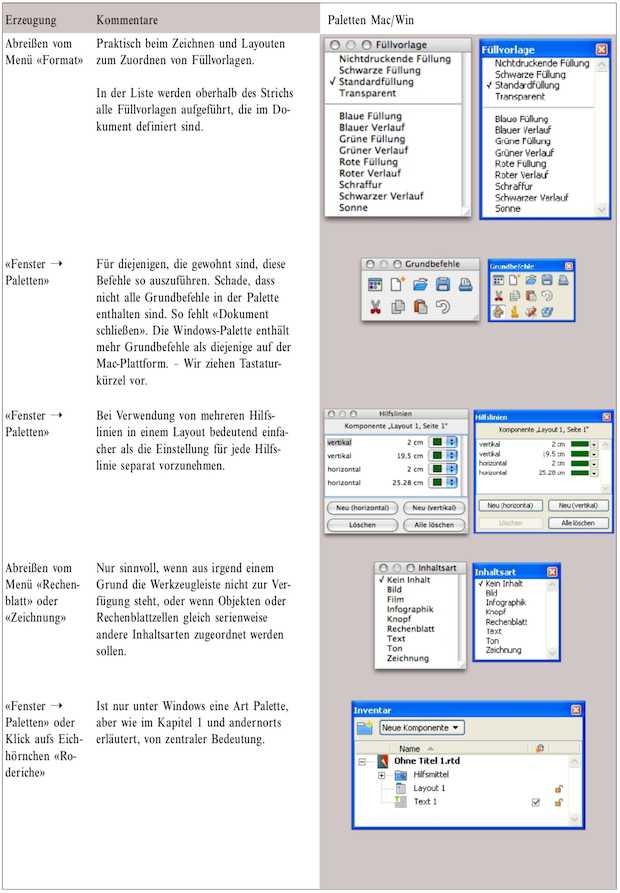
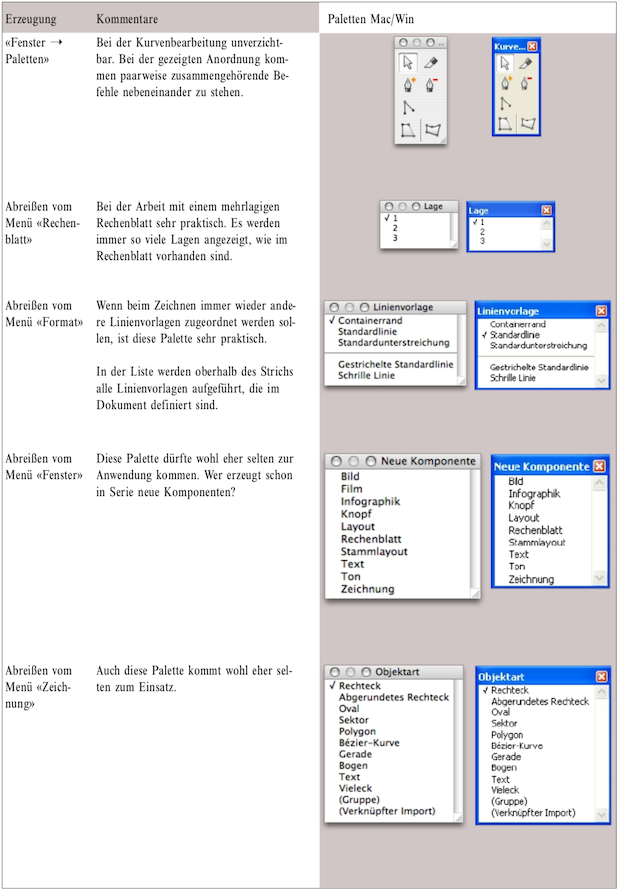
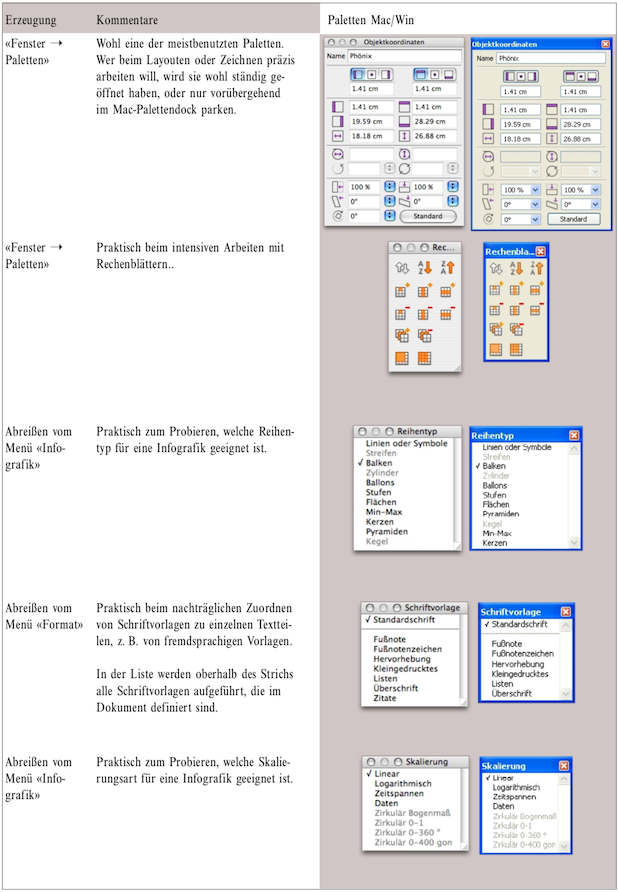
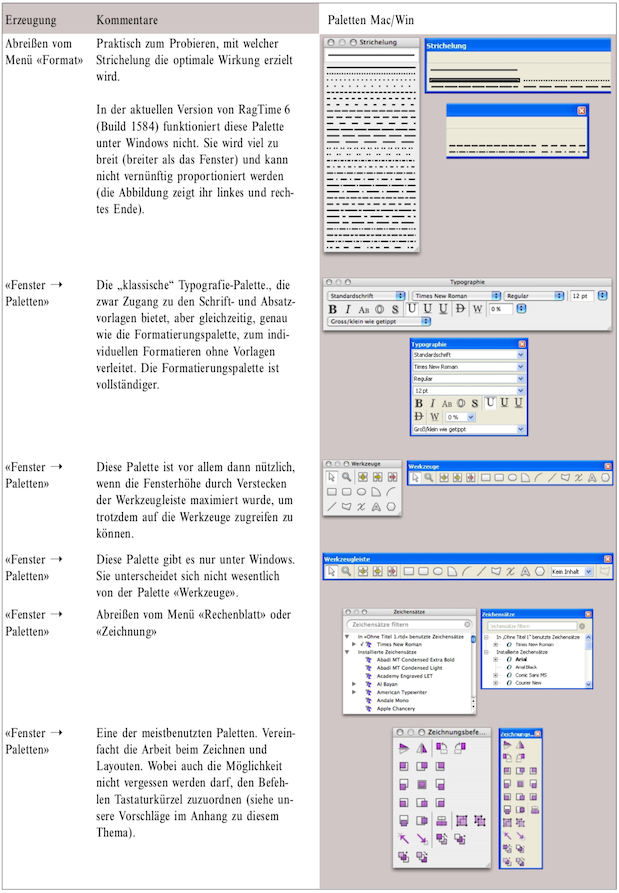
In the following overview tables, we show how each palette is created and include comments on their use. Many palettes can be resized by dragging the bottom right corner. The shape shown often does not correspond to the installation state or the shape you have specified for yourself. The palettes always open in the state in which they were last closed. All palettes that show lists of style sheets or used elements are shown here in their “empty” state and are supplemented accordingly depending on the active document or selected object. We show the palettes in alphabetical order, always for both platforms.
The color palette requires special comment: does the palette of available colors seem one-sided to you because it contains too many shades of green, while the color you want is missing? In the forum, it has been suggested that green is a preference of the RagTime programmers. Not at all! Although the palette does not correspond to our perception of color, it follows mathematical rules when mixing in the RGB color space: the proportion of each of the three primary colors is first increased in steps of 51 from 0 to 255 (corresponding to hexadecimal FF) in all possible combinations. This results in 255 different shades. After the 255th color come the pure colors (i.e., with only one of the RGB primary colors) in finer increments of 17 each – omitting, of course, those already generated according to the first rule – and finally the gray tones (i.e., with all primary colors in identical proportions) in fine gradations.